When following Assert Folders document of Hexo to enable post_asset_folder and install hexo-render-marked. You can render an image through executing hexo server.
But the path mismatches what Visual Studio Code supports by Markdown Preview natively.
As an example, once post-asset_folder is enabled, if you create a post named “My New Post”, a file named My-New-Post.md and an empty directory My-New-Post are creatd in source\_posts.
When you place an image into source\_posts\My-New-Post\image.png, the image link expected by Hexo in source\_posts\My-New-Post.md is . But it cannot be render by Markdown Preview in Visual Studio Code because the image link expected by it is .
To make Visual Studio Code supporting preview the image, Hexo Utils can be used.
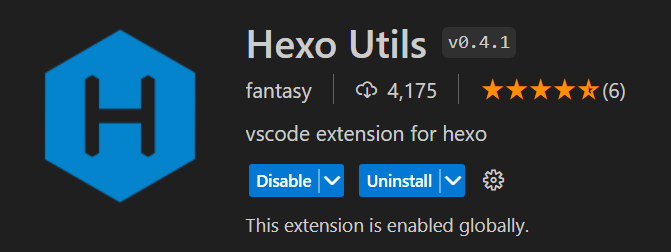
After installing Hexo Utils, to paste an image (for example, a screenshot), pressing Ctrl + Alt + v can past the image into source\_post\My-New-Post directory. The name will be a timestamp, for example, 2024-03-23T231105.png. And the image link will be inserted into source\_post\My-New-Post.md automatically. Then, you can see the image in both Hexo server preview and Markdown Preview in Visual Studio Code.